
Security Overview
The Security page allows you to manage your account security by changing your password and configuring two-factor authentication (2FA).
To access the Security page, click on the user menu in the bottom left corner, then select Security.
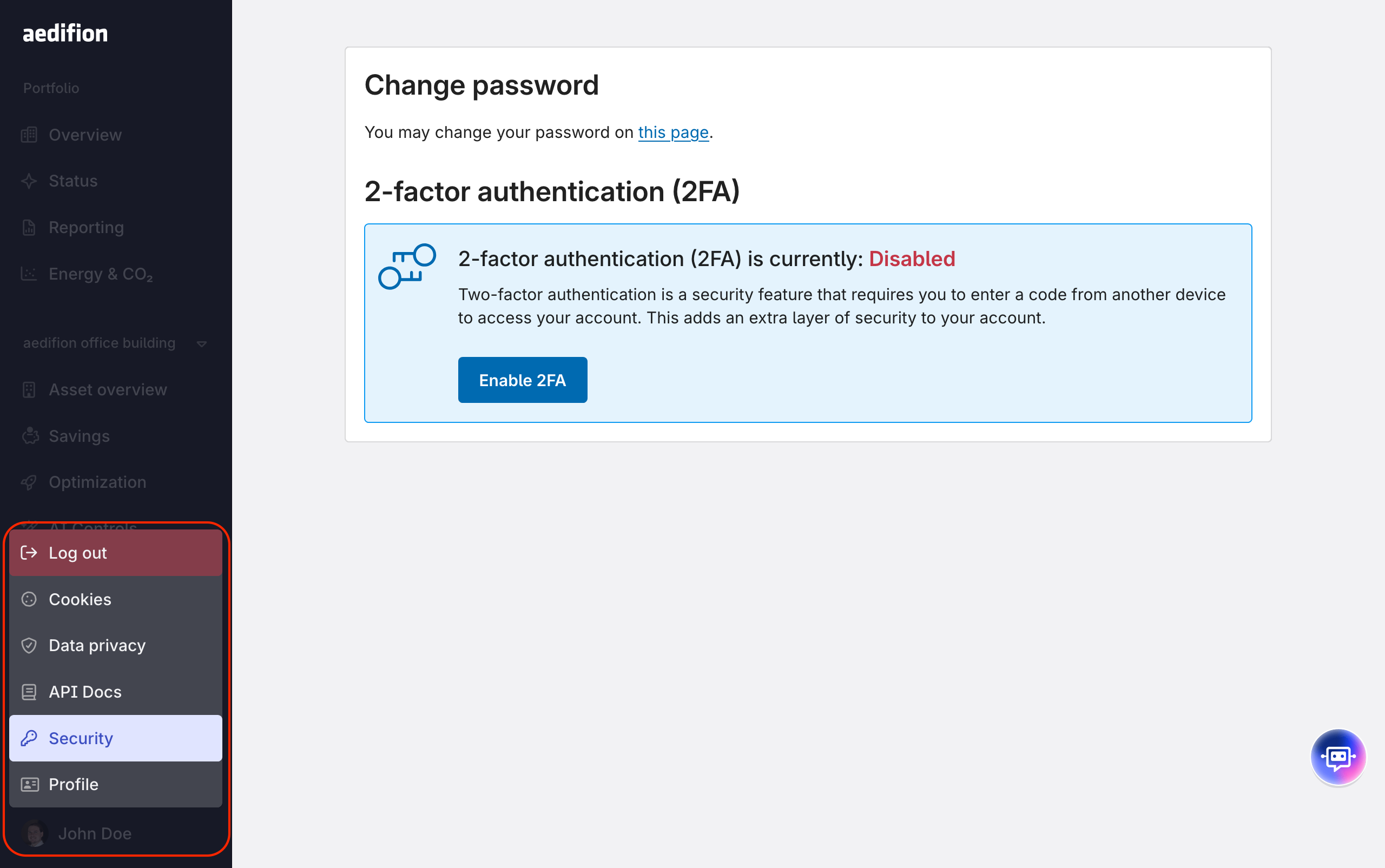
Changing Your Password
To change your password:
- Follow the link in the "You may change your password on this page" text.
- Log in again (if you have logged in a long time ago).
- Enter your new password in the field.
- Click the Aktualisieren button.
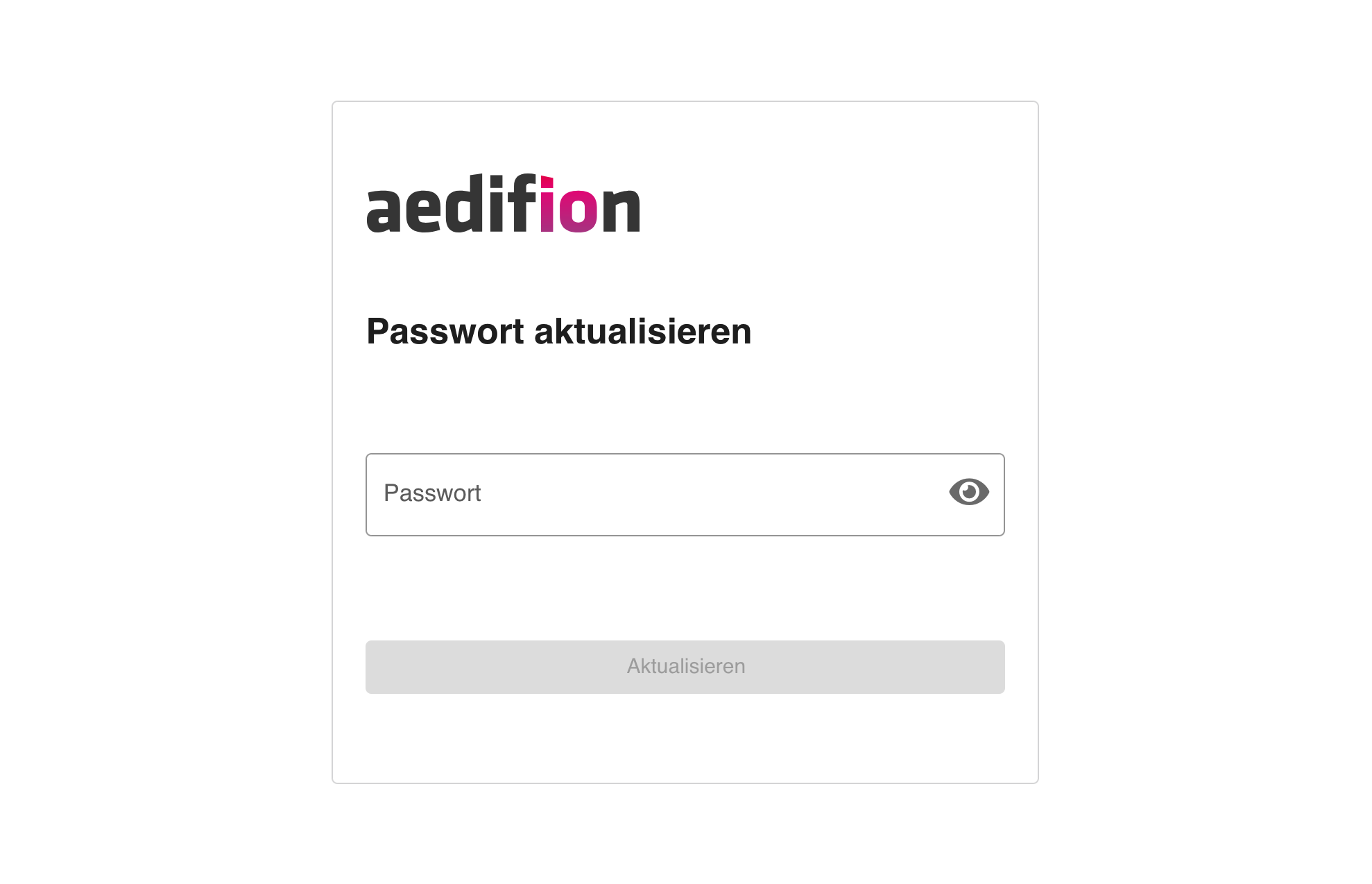
Your new password must meet the following requirements:
- Have between 12 and 128 characters
- At least one uppercase letter (A-Z)
- At least one lowercase letter (a-z)
- At least one digit (0-9)
- At least one special character (for example "!", "$", "%")
If your password does not meet these requirements, an error message will appear below the password field.
After successfully changing your password, you will be redirected to the security page.
Two-Factor Authentication (2FA)
Two-factor authentication adds an extra layer of security to your account by requiring a time-based code from an authenticator app in addition to your password.
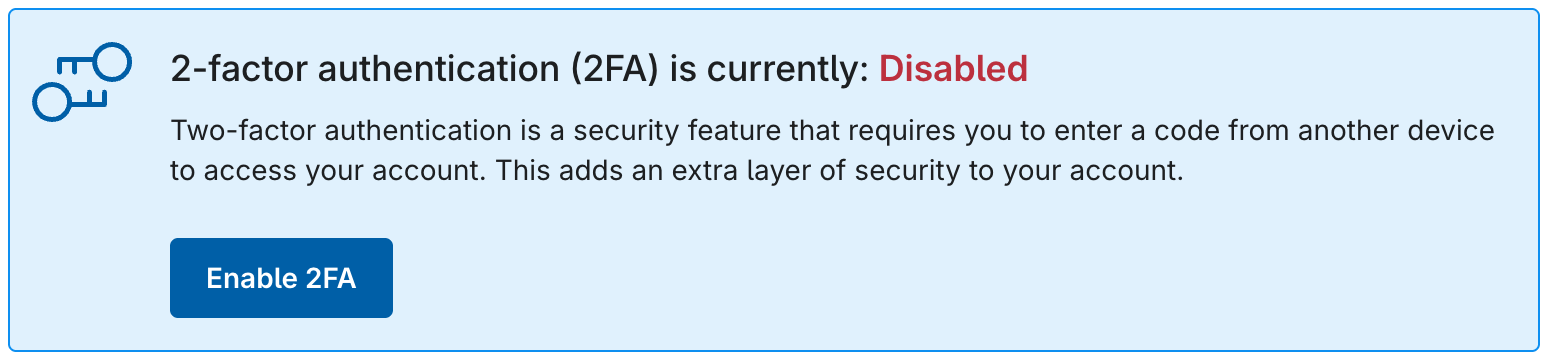
Enabling 2FA
- In the Two-Factor Authentication section, click Enable 2FA.
- Scan the QR code with your authenticator app (such as Google Authenticator, Authy, or FreeOTP).
Figure 4: Enabling 2-factor authentication
If you cannot scan the QR code, you can manually enter the secret key and configuration details shown below the QR code into your authenticator app. - Click Confirm QR code scan to proceed.
- Enter the 6-digit code displayed in your authenticator app.
Figure 5: Confirming the 2-factor authentication setup by entering a code from the authenticator app
- Click Confirm code to complete the setup.
Once enabled, you will need to enter a code from your authenticator app each time you log in.
Disabling 2FA
In the "2-Factor authentication" section, click Disable 2FA. 2FA will be disabled immediately and you will no longer need to enter a code when logging in.
⚠️ Warning: Disabling 2FA significantly reduces the security of your account. Your account will then only be protected by your password.