
Custom Portfolios
Creating a custom portfolio
Custom portfolios are created directly from the Portfolio Overview. If you have access to more than one company, you'll first be asked "For which company would you like to set up a new portfolio?" — pick the company the new portfolio belongs to.
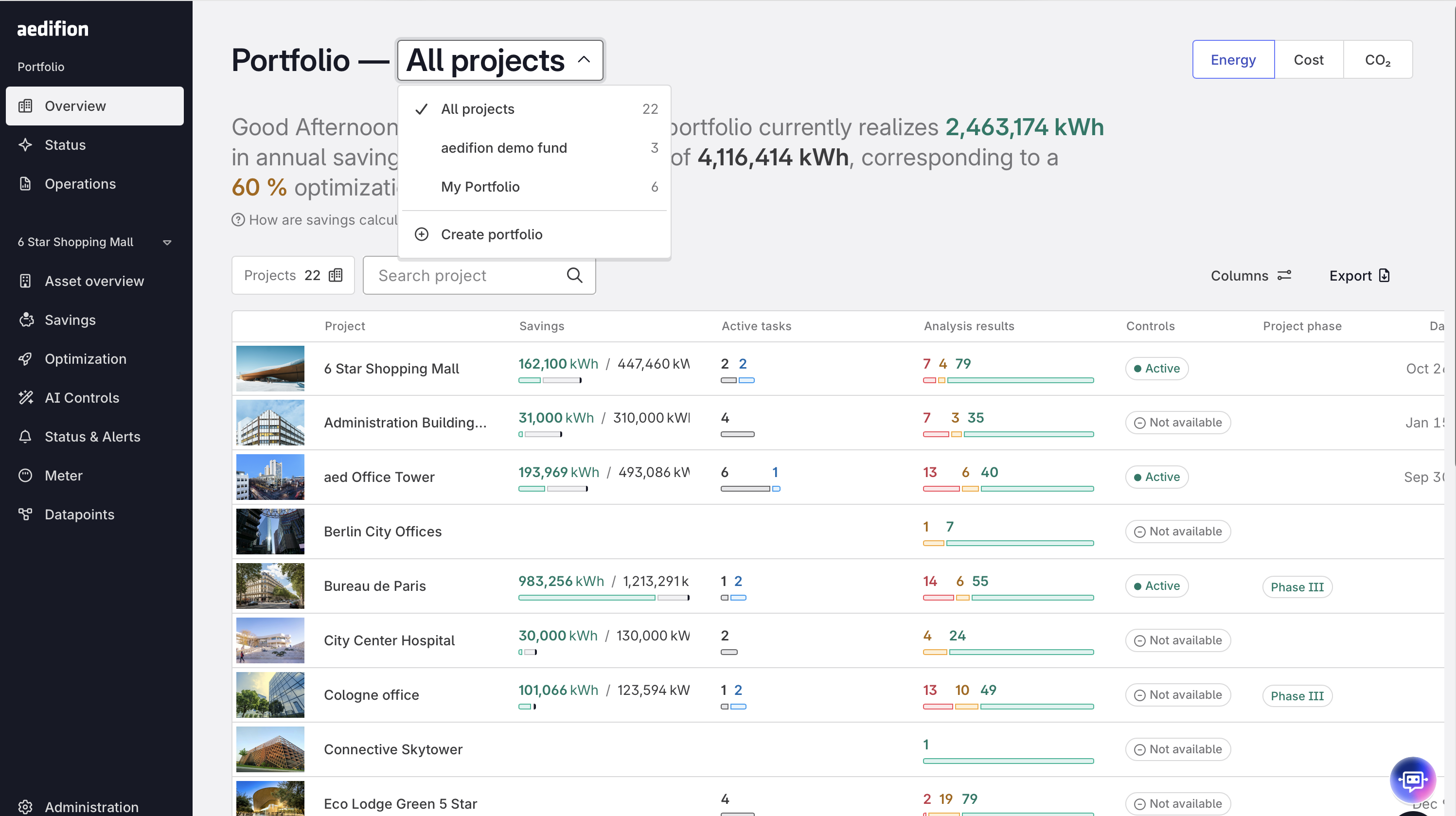
You'll then land on the portfolio editor, where you can:
- Name the portfolio. New portfolios start out as "New portfolio 1" — click the pencil icon next to the name to rename it.
- Choose its projects. Use the search field and the checkboxes in the project list to pick which projects belong to this portfolio. A counter keeps track of how many projects you've selected.
Click Save to keep your changes, or Cancel to discard them. You can remove a portfolio at any time via Delete portfolio.
Visibility
Custom portfolios are set up on a company level, not per user. Once saved, a portfolio is visible to every user who already has access to at least one of the projects included in it — creating a custom portfolio never grants anyone new project access, it only offers a filtered view of what they can already see.
Switching between portfolios
Once created, a custom portfolio appears next to "All projects" at the top of the Portfolio Overview, so everyone with access can switch between them. Each portfolio has its own summary — realized savings vs. potential and the resulting optimization rate — and you can switch units (e.g. energy or cost) just like in the main Overview.
Good to know
- A project can be included in more than one custom portfolio.
- Deleting a custom portfolio only removes the saved view — it never affects the underlying projects or anyone's access to them.