
Documents
Uploading, replacing, deleting and creating folders is restricted to project and company administrators (see Administration). Note that folders currently cannot be deleted or renamed once created.
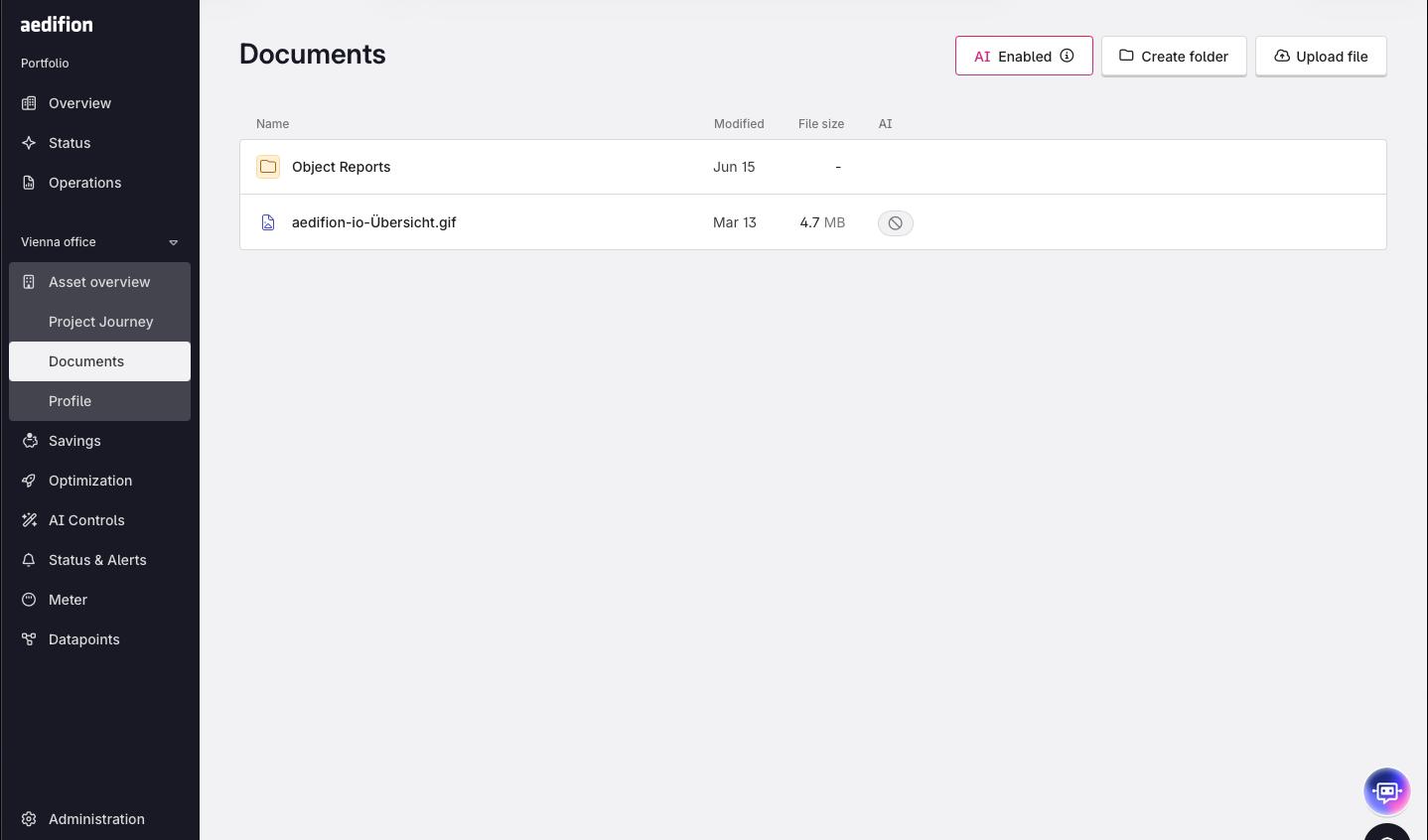
Uploading a file
Click Upload file to open the upload dialog. Add a file by clicking the dropzone to browse your local drive, or drag it in directly. One file is uploaded at a time. Click Upload to start; the button changes to Uploading and then to Upload Complete. If the upload fails, the file is shown in red with an error message — the file is not stored and you can try again.
Organising documents in folders
Administrators can create folders on the Documents page to structure the file list, and upload files directly into an existing folder. Folders cannot currently be deleted or renamed, so choose folder names deliberately.
Opening a document in the browser
Click a row to open the document in a preview window on the same page, with Close, Download and Open in new tab. Whether a document opens or downloads depends on its file type: anything the browser can display — PDF, images, plain text — opens directly, other formats are downloaded instead.
Sharing a document
Use the copy-link button to copy a permanent link to a document. The link does not expire, but recipients must be logged in and have access to the project. Opening it takes them straight to the document with the preview already open.
Downloading a document
Files can be downloaded from the file list or from the preview window. Available to everyone with project access.
Where documents are stored
Uploaded files are stored in the asset's Documents section, alongside the project reports you generate from the Asset Overview page.
Permissions
Action | Who |
|---|---|
Upload, replace, delete files, create folders | Project and company administrators |
View, download, share links | Everyone with project access |