
Creating Goals
In the asset overview you can define goals for a building that provide all users with an overview of important planned tasks, measures, or initiatives. The status bar gives a quick visual overview of the current progress of implementation. The goals are stored directly in the properties of the building component and are then visible to everyone in the Asset overview.
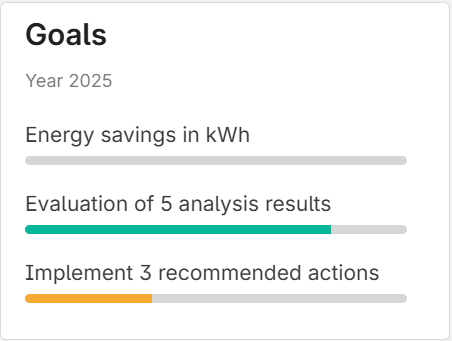
Figure 1: Display of goals in the Asset overview
Creating Goals
- Click on the "Optimization" tab in the navigation bar on the left
- Select the building component:
- Option A: Click directly on the tile with the "Building" component
- Option B: Click on "Components" on the left, enter "Building" in the search, and select the building component
- Open the menu (three dots ⋮) and select the "Edit Properties" tab, as shown in Figure 2
Figure 2: Building component menu
- A window will open with all the attributes available to the building component. Use the search function to find the "Goals" attribute, or simply scroll through the list
- Click on the input field. A pop-up window will open with a JSON editor where a JSON object can be edited or created
Figure 3: The JSON editor opens as soon as the input field is clicked
- Finally, select "Save" and reload the page. The new or edited goals should now be visible on the asset overview page.
Editing the JSON Structure
To ensure the goals are displayed correctly, it is important to follow the exact syntax for the JSON object. To simplify the creation of the object, a template is provided below that can simply be copied and pasted into the editor field.
JSON Keys and Description
period- Describes the time period for which the goals apply (multilingual)goals- A list of all goals for this period; multiple goals in the list are separated by commasgoals[].names- Displayed name of each goal (multilingual)goals[].bar_chart- Defines the status bar below the goal namegoals[].bar_chart.min- Minimum value of the goal (corresponds to 0% completion)goals[].bar_chart.act- Current progress of this goal. No automatic updates, must be done manuallygoals[].bar_chart.max- Maximum value of the goal (corresponds to 100% completion)
JSON Template
This template defines two goals for a period. To add more goals, simply append an additional goal object (consisting of names and bar_chart) to the end of the goals list separated by a comma.
{
  "period": {
    "de": "string",
    "en": "string"
  },
  "goals": [
    {
      "names": {
        "de": "string",
        "en": "string"
      },
      "bar_chart": {
        "min": number,
        "act": number,
        "max": number
      }
    },
    {
      "names": {
        "de": "string",
        "en": "string"
      },
      "bar_chart": {
        "min": number,
        "act": number,
        "max": number
      }
    }
  ]
}
Note: Copy this template into the editor field and replace the placeholders "string" and number with your own values. Figure 3 shows a fully completed example of how it should look in the editor.